All courses · Practical Applications · Multiple
AI for Email and Professional Communication
AI for Email and Professional Communication is a self-paced AIvanced Academy course (20 lessons, 5h 10m).
Use ChatGPT, Copilot, Gemini or Claude to draft, fix and shorten work emails, then check every fact before you send.
- Length: 5h 10m
- 20 lessons in 5 modules
- Level: Beginner
- Certificate of completion
- Price: $24.99 one-time, lifetime access
Also included with Academy Membership ($29.99/month or $249.99/year) and with a Teams plan. See pricing
About this course
This course is for anyone who writes a lot of work email and wants AI to help, without sending something wrong, private or out of tone. You don't need any AI experience.
What you'll do: In every lesson you'll practice in a real AI tool: ChatGPT, Microsoft Copilot, Google Gemini or Claude. A free account works. You'll copy a prompt and some made-up facts into the tool, paste its answer back, fix it, and say what you changed. Prefer to write it yourself? Every exercise has a no-AI path with the same checklist.
You'll follow Jordan, an event coordinator at a made-up company, Larchmont Events, through one client's staff dinner. Along the way you'll learn to:
- Write clear email prompts with a simple recipe: task, material, shape, rules
- Keep private details out of AI tools by using placeholders
- Turn rough notes into drafts and change the tone for each reader
- Shorten long emails and summarize long threads without losing facts
- Handle upset clients and write clear meeting follow-ups
- Check names, dates and numbers, promises, and who it's going to before you hit send
What you need: a web browser and any AI chat tool. All practice uses made-up details, so you never paste real work information. Some exercises also offer Live AI, an optional practice AI built into the course.
Time: about 5 hours 10 minutes in total, in 20 short lessons. One or two lessons make a good sitting.
Certificate: complete every lesson, submit the final practice, and score at least 75% (6 of 8) on the Final Knowledge Check.
Topics: email, writing, tone, summarizing, meeting follow-ups, sensitive messages, chatgpt, copilot, fact-checking
What you'll learn
- Write an email prompt with a task, the facts, the shape you want and clear rules
- Keep passwords, codes, numbers and private details out of AI tools by using placeholders
- Turn bullet notes into a clear draft without letting AI add facts
- Change an email's tone to fit a client, manager, coworker or vendor
- Shorten a long email or summarize a thread while keeping every date, number and name
- Reply calmly to a difficult message and know when not to use AI at all
- Check an AI draft for names, dates and numbers, promises, and who it's going to before you send
What a lesson looks like
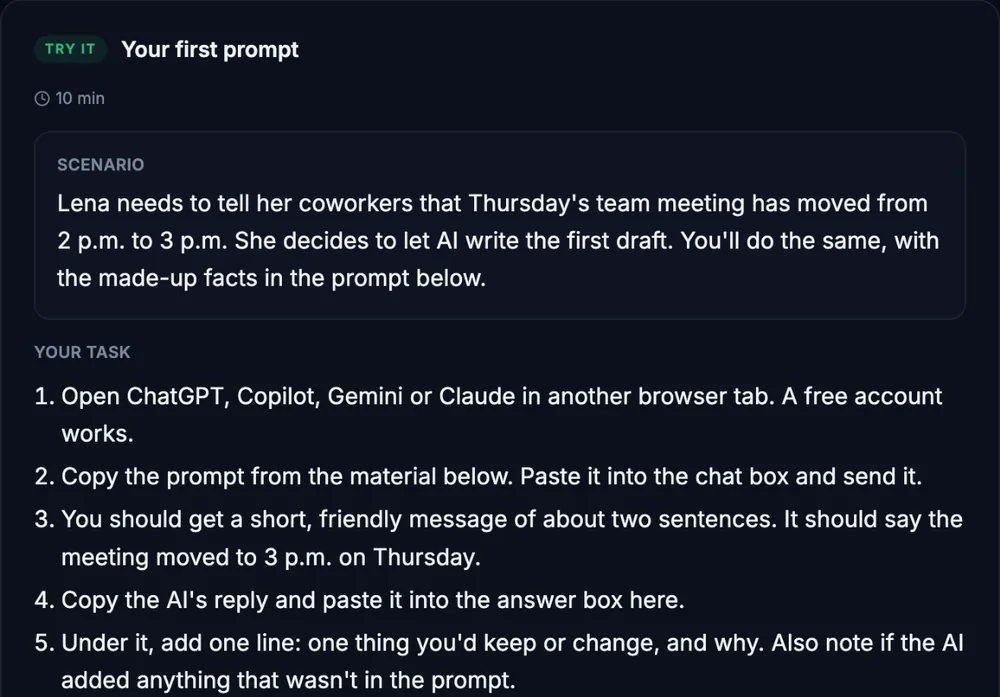
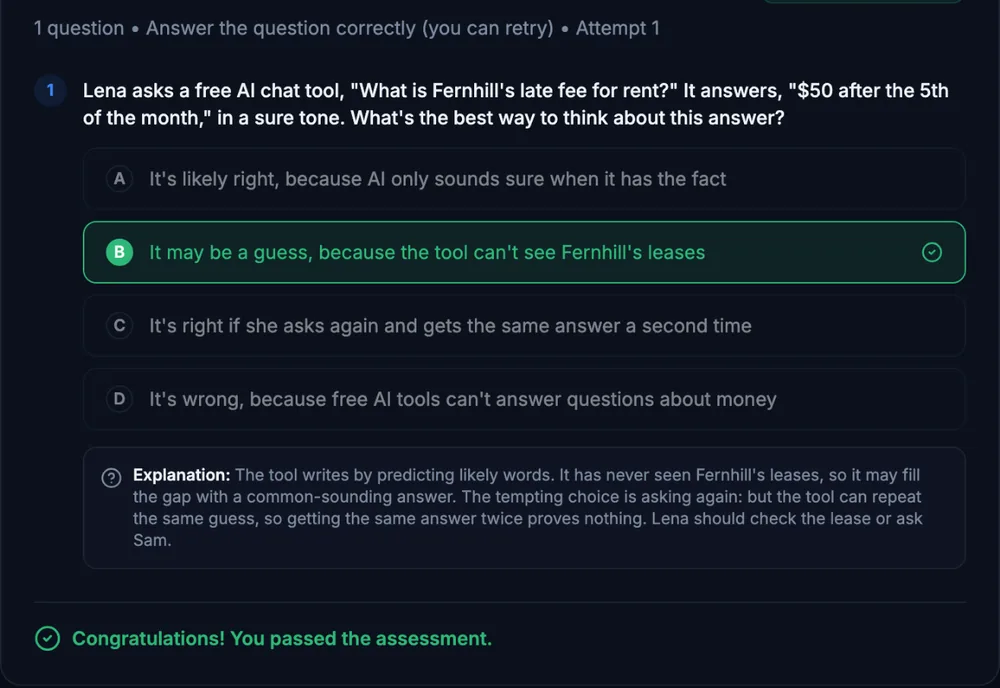
Course outline
Get Set Up
- What AI Can (and Can't) Do for Your Email (free preview)
- How AI Writes an Email (and Why It Can Get Things Wrong) (free preview)
- What Not to Paste: Use Placeholders
- Guided Check: Safe to Paste? Good Idea?
Draft Emails with AI
- From Bullet Notes to a Draft
- The Email Prompt Recipe
- Guided Check: Review an AI Draft Before You Send
- Structured Simulation: Draft an Announcement Email
Tone and Clarity
- Tone: Formal, Friendly, and In Between
- Make It Shorter Without Losing Meaning
- Structured Simulation: Fix a Harsh or Robotic Email
Harder Emails
- Summarize a Long Email Thread
- Reply to Difficult or Sensitive Messages
- Write Clear Meeting Follow-Ups
- Check the Facts Before You Hit Send
- Guided Check: Find the Four Mistakes
Wrap-Up and Final Practice
- Common Mistakes When Using AI for Email
- Your AI Email Routine
- Final Practice: Handle a Sensitive Email Situation
- Final Knowledge Check
Start with the free preview lessons, no account required. Questions about buying